CRM Fan Management System - Getting Started
Learn how to use the CRM system to manage fan relationships, boost user engagement and conversion rates
The CRM (Customer Relationship Management) system is your powerful tool for managing fan relationships, boosting user engagement, and improving conversion rates. This guide will help you get started with CRM features quickly.
CRM Dashboard Overview
Access the CRM dashboard by clicking "CRM" in the sidebar. This central hub provides a comprehensive view of your fan community's health and growth.
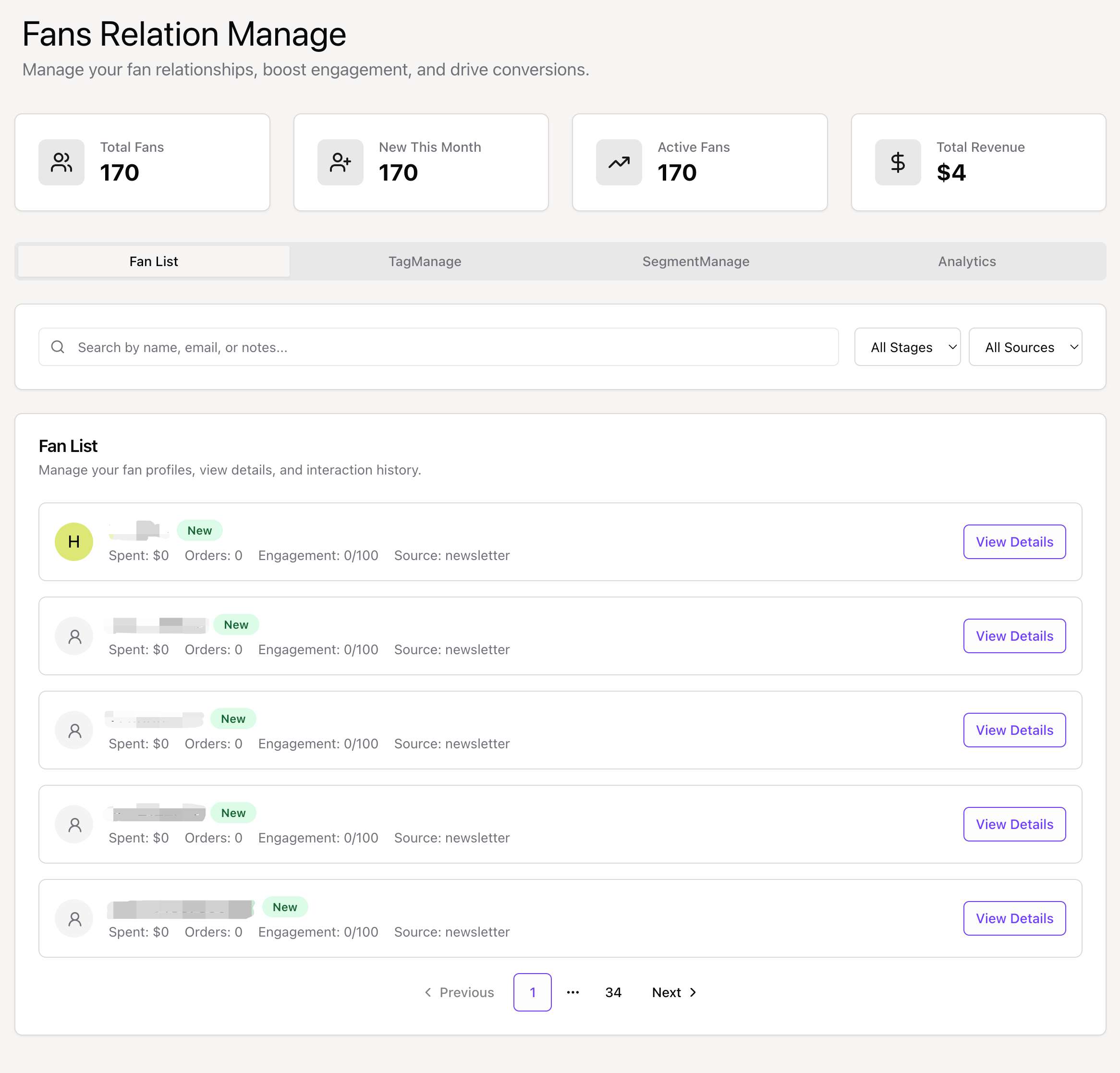 The CRM Dashboard showing key statistics and navigation tabs.
Key Statistics
At the top of the dashboard, you'll see four key metrics cards:
- Total Fans: The total number of users who have interacted with your content.
- New This Month: The number of new fans acquired in the current month.
- Active Fans: Fans who have been active within the last 30 days.
- Total Revenue: Total revenue generated from your fans.
Navigation Tabs
The dashboard is divided into four main sections:
- Fan List: View and manage individual fan profiles.
- Tag Management: Create and manage tags for categorization.
- Segment Management: Create and manage groups of fans.
- Analytics: Deep dive into fan data and trends.
1. Fan List & Management
The Fan List tab is your primary workspace for viewing individual fan data. It lists all your fans with key information at a glance.
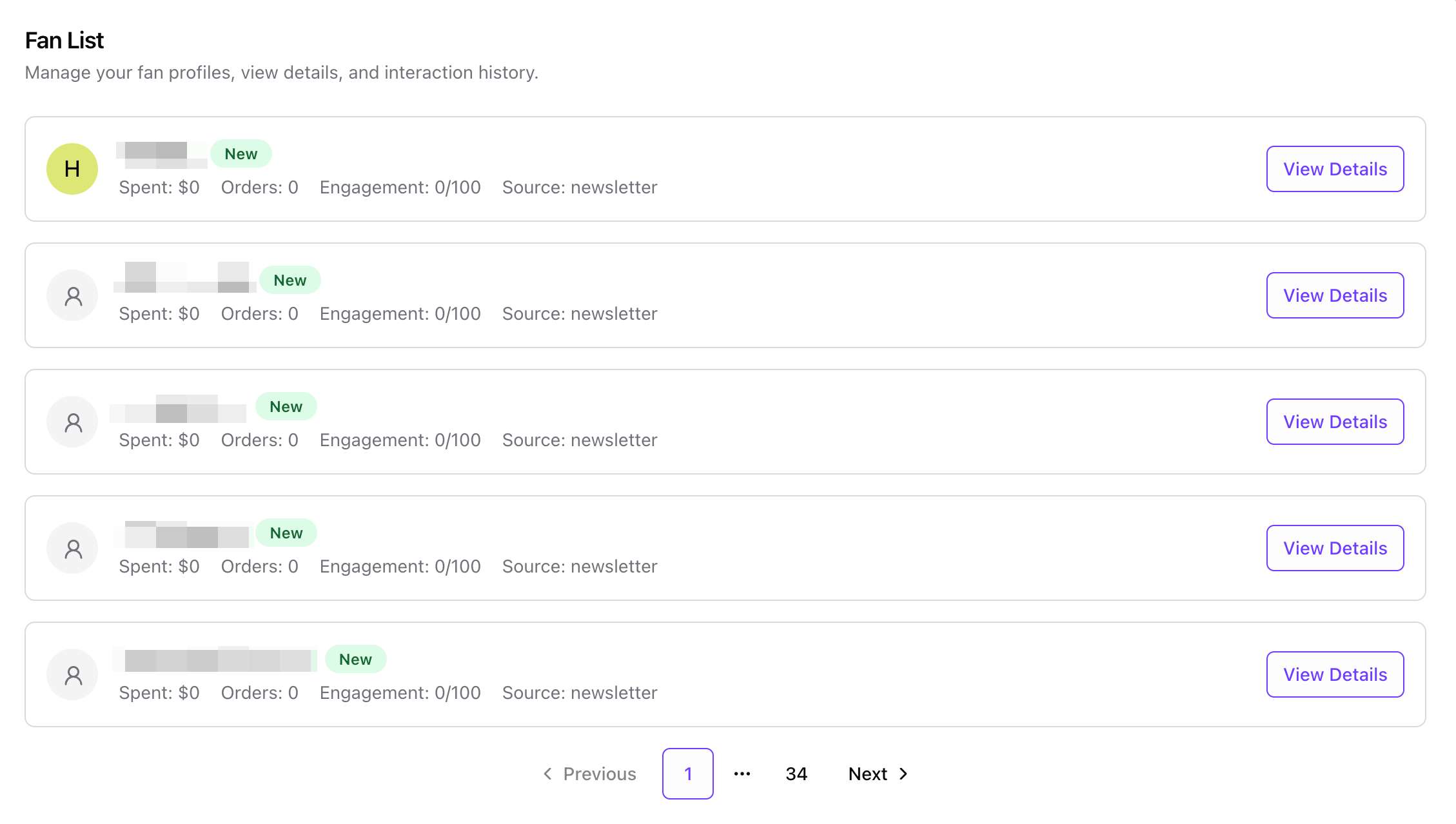 The Fan List view with search and filter options.
Searching and Filtering
You can easily find specific fans using the search and filter tools:
- Search: Search by fan name, email, or notes.
- Stage Filter: Filter fans by their lifecycle stage (New, Engaged, Customer, Advocate, Inactive).
- Source Filter: Filter fans by how they were acquired (e.g., Subscription, Direct purchase).
Fan Profile Card
Each fan in the list is displayed with a card containing:
- Basic Info: Name, email, and avatar.
- Lifecycle Badge: Current stage (e.g., "Engaged" in blue).
- Stats: Total Spent, Order Count, and Engagement Score (0-100).
- Tags: Assigned tags for quick identification.
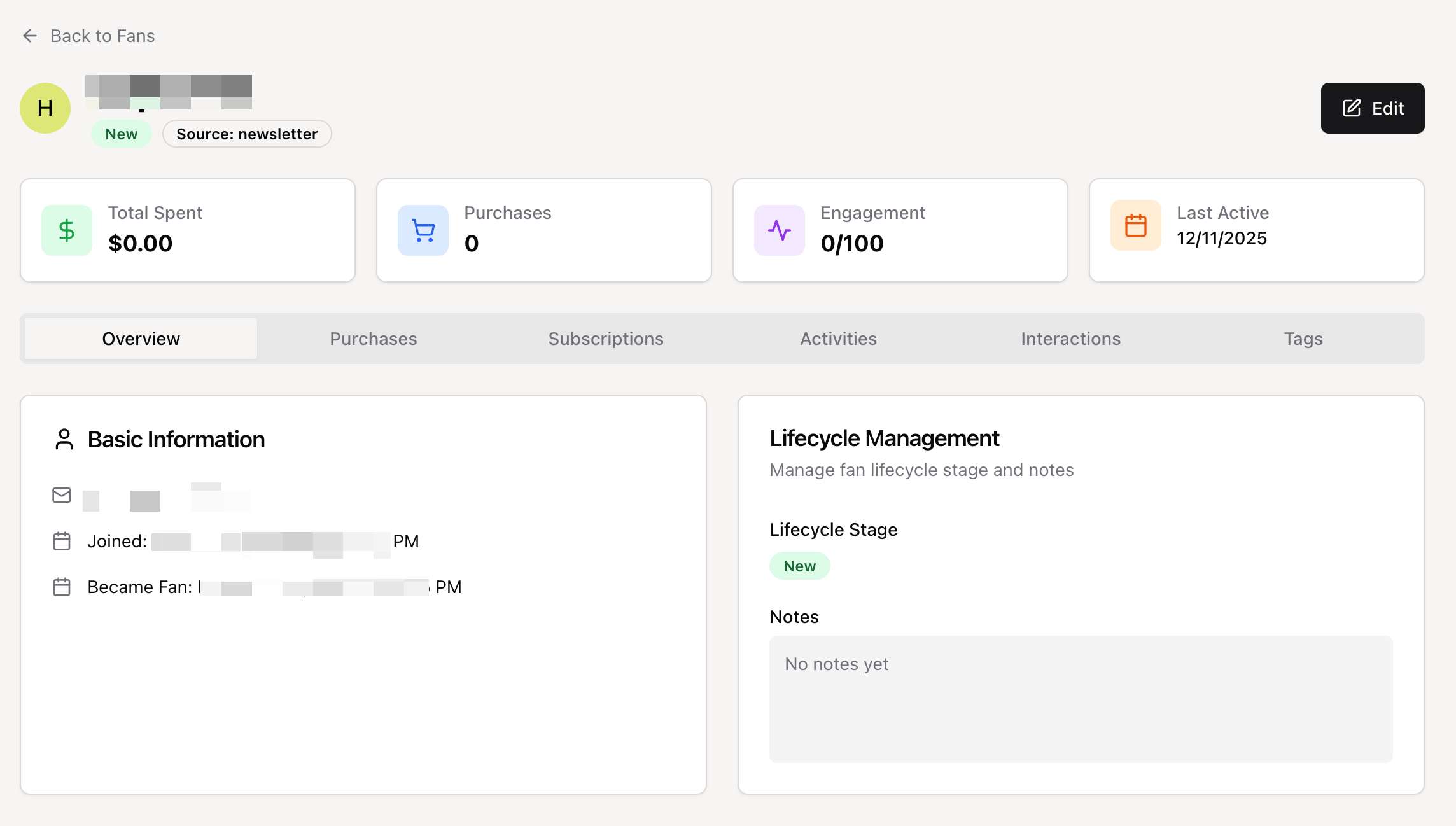
To see full details, click "View Details" on any fan card.
2. Tag Management
Switch to the "Tag Management" tab to organize your fans with custom labels. Tags can be assigned manually or automatically based on rules.
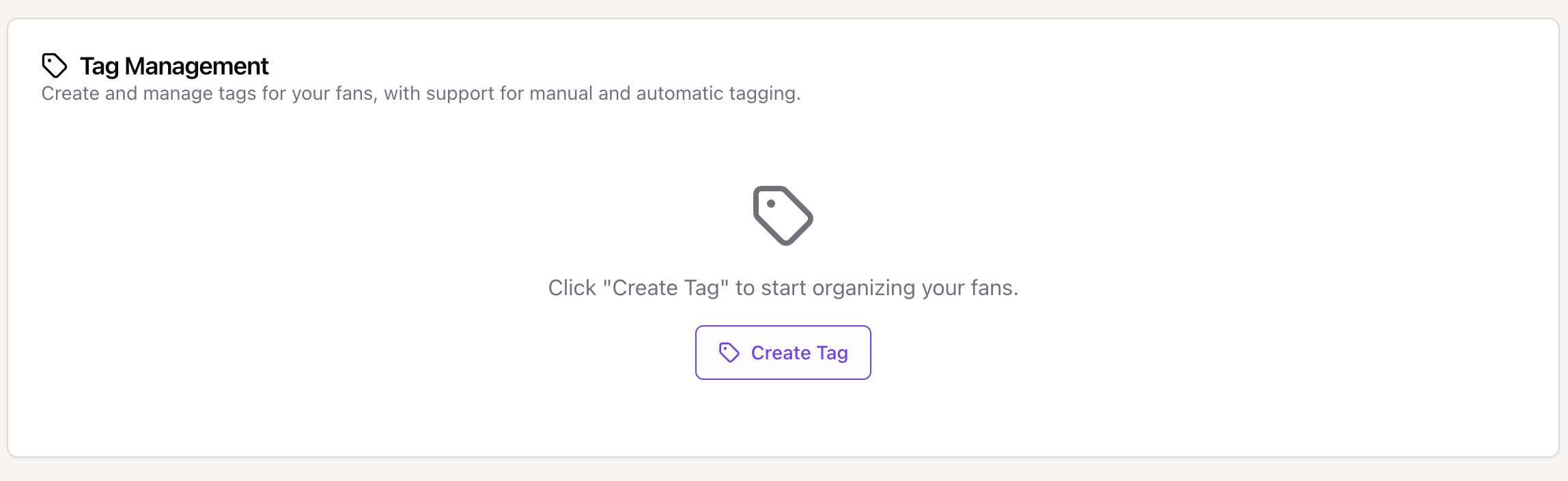 The Tag Management interface.
- Create Tags: Define new tags with specific colors and categories.
- Automatic Rules: Set up rules to automatically tag fans based on spending, activity, or lifecycle stage.
- Manage: Edit or delete existing tags.
👉 Learn more in the Tag System Guide
3. Segment Management
The "Segment Management" tab allows you to group fans based on shared characteristics. This is powerful for targeted messaging.
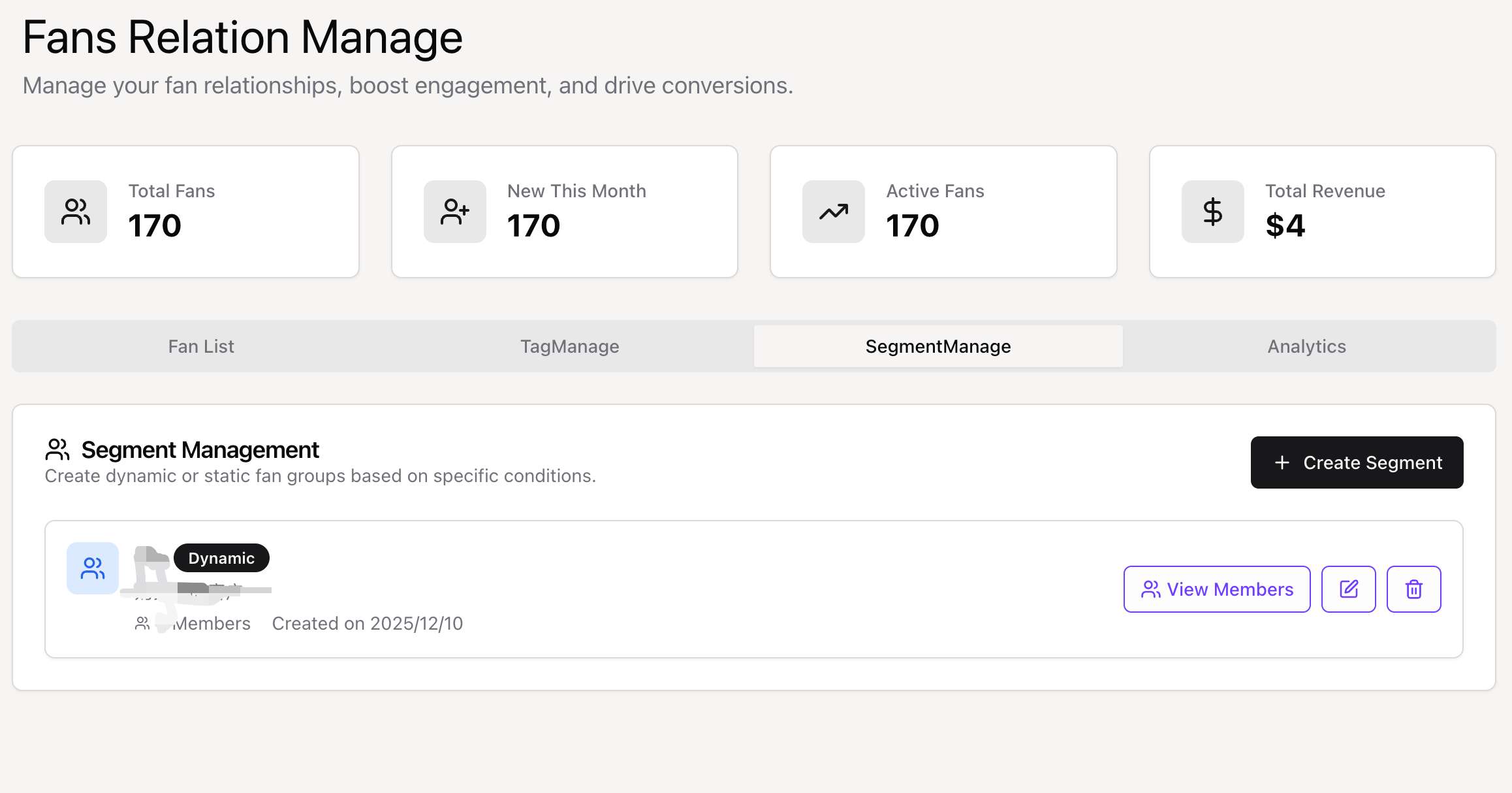 The Segment Management interface.
- Dynamic Segments: Automatically include fans who meet specific criteria (e.g., "High Spenders").
- Static Segments: Manually selected list of fans.
👉 Learn more in the Segmentation Guide
4. Analytics
The "Analytics" tab provides deeper insights into your fan base composition and growth.
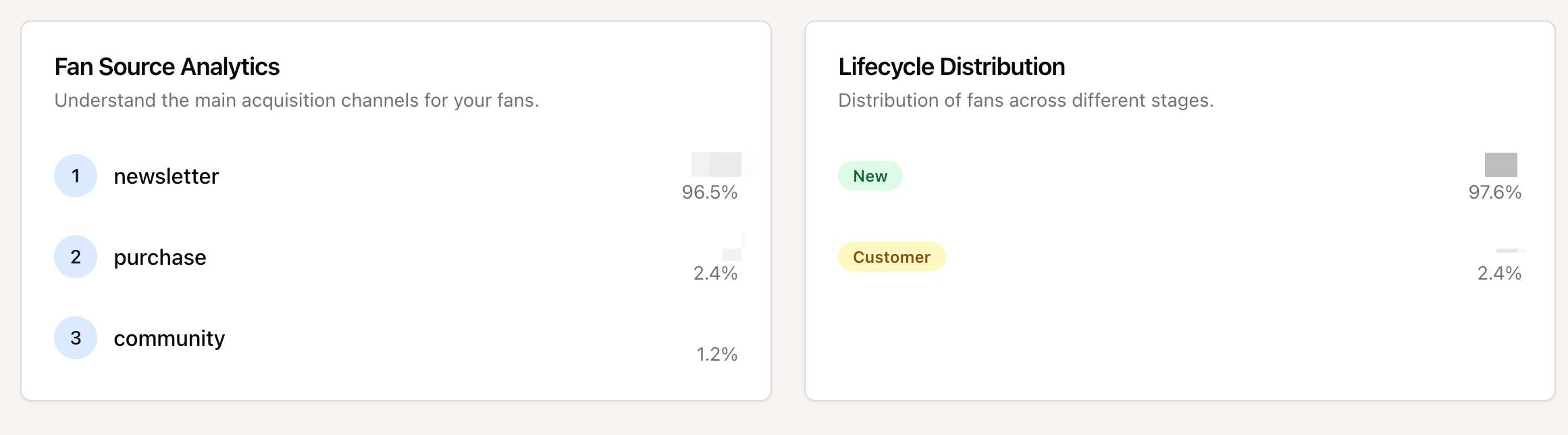 The Analytics dashboard showing source and lifecycle charts.
- Fan Source Analytics: A breakdown of where your fans are coming from (e.g., Google, Social Media, Direct).
- Lifecycle Distribution: A visual chart showing the proportion of your fans in each lifecycle stage.
Need Help?
If you have questions or run into issues:
- Check the detailed guides linked above.
- Contact support for technical assistance.