CRM Segment Management - Advanced Guide
Master segmentation features to achieve precise fan classification and marketing automation
Segmentation is an advanced feature of the CRM system that allows you to automatically or manually group fans based on complex conditions. This enables precise marketing, personalized content, and better user understanding.
Overview
Segments are groups of fans that meet specific criteria. The CRM supports two types of segments:
- Dynamic Segments: Members are automatically added or removed based on real-time data and rules (e.g., "All fans who spent > $100").
- Static Segments: A fixed list of fans that you manually curate (e.g., "Event Attendees 2024").
Accessing Segments
To view and manage your segments:
- Go to the CRM Dashboard.
- Click on the "Segment Manage" tab.
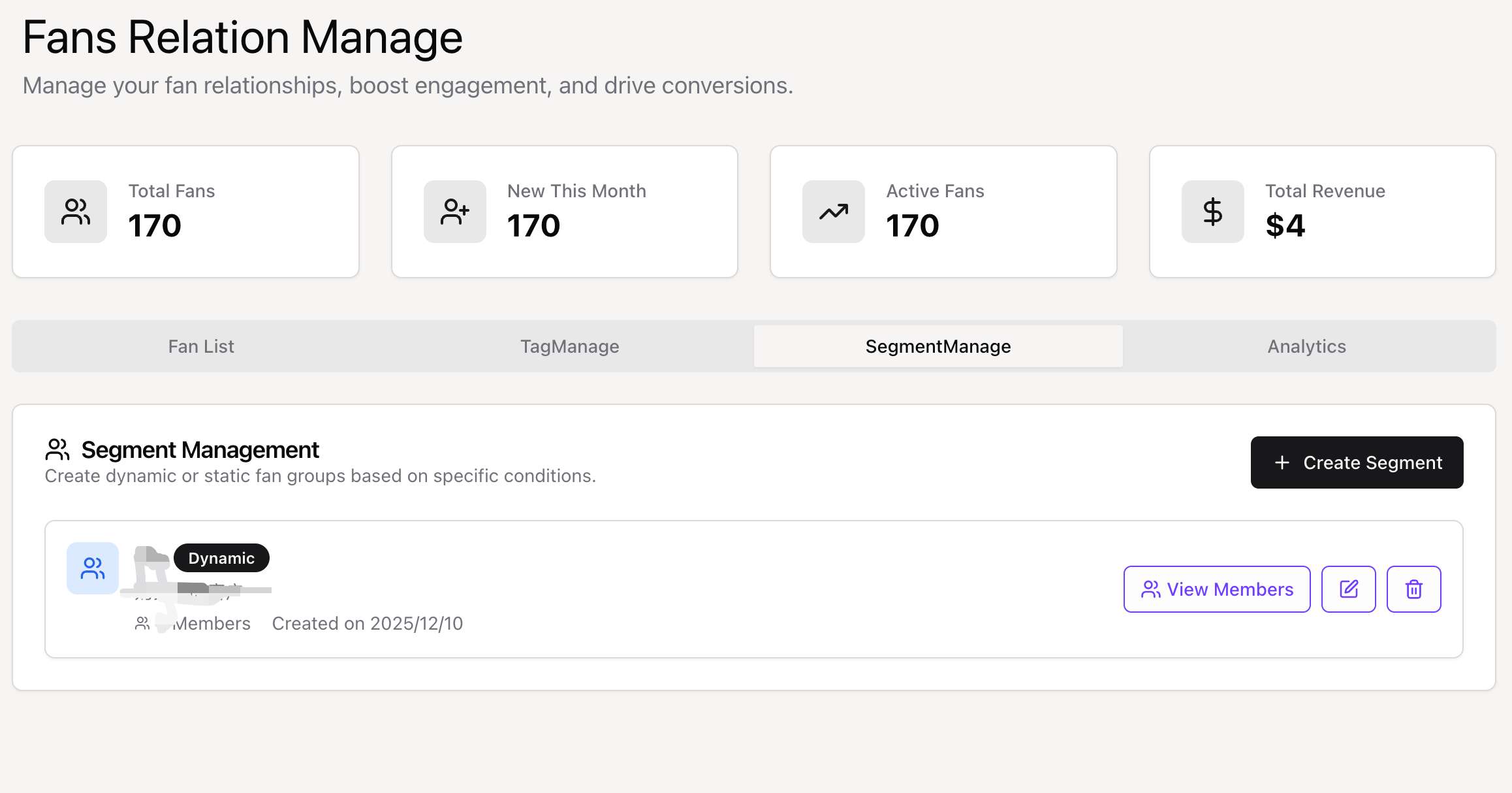 The Segment Management interface displaying your active segments.
Creating a New Segment
Click the "Manage Segments" button (or "Create Segment") to open the creation modal.
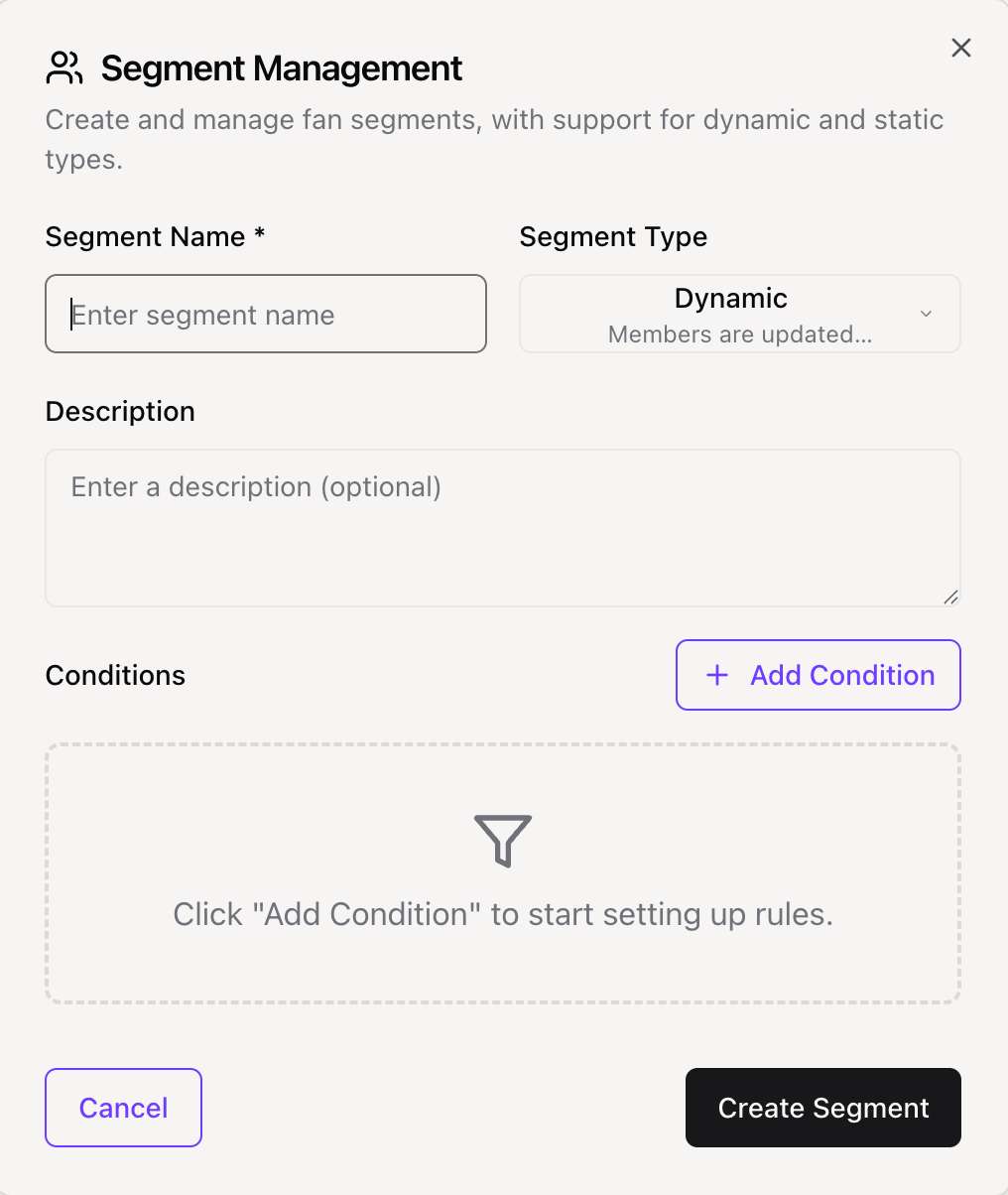 The Create Segment modal where you define your segment rules.
Step-by-Step Guide
- Name & Description: Give your segment a clear name (e.g., "High Value - Active") and an optional description.
- Type: Select "Dynamic" or "Static".
- Conditions (Dynamic Only): Define the logic for who belongs in this segment.
Dynamic Segment Conditions
Dynamic segments use logical rules to filter your fan base. You can combine multiple conditions to create precise groups.
Available Conditions
| Condition Field | Description | Examples |
|---|---|---|
| Lifecycle Stage | Filter by the user's current stage in the funnel. | Is Customer, Is Advocate |
| Total Spent | Filter by the total revenue generated by the fan. | > $50, > $100 |
| Purchase Count | Filter by the number of completed orders. | > 0 (Has purchased), > 5 (Frequent buyer) |
| Source | Filter by how the fan was acquired. | Subscription, Direct Purchase |
| Last Active Date | Filter by when the fan last interacted with your platform. | > 30 days ago (Inactive), < 7 days ago (Active) |
Best Practices for Segmentation
- Start Simple: Begin with broad segments like "Customers" vs "Non-Customers".
- Combine Logic: Use "AND" logic to narrow down specific groups (e.g., "Engaged" AND "High Spender").
- Monitor Growth: Check your segment sizes regularly to see trends (e.g., is your "High Value" segment growing?).
Using Segments
Once created, segments can be used to:
- Filter the Fan List: Quickly see all users in a specific segment.
- Send Targeted Messages: (Coming Soon) Send emails or notifications to specific segments.
- Analyze Trends: Compare the behavior of different segments over time.
Need More Help?
For more details on tagging individual users, check the Tag System Guide.