Email Marketing: Connect with Your Audience
Learn how to create, send, and track email campaigns directly from your Postion dashboard. Build a loyal subscriber base with ease.
Email is the most direct way to reach your audience. Postion's built-in Email Marketing tools allow you to send newsletters and updates without needing a third-party service like Mailchimp.
1. Accessing Email Campaigns
To manage your emails:
- Go to Site Dashboard: Navigate to the specific site you want to manage.
- Click Newsletter: In the sidebar, select "Newsletter" -> "Campaigns".
2. Creating a Campaign
- New Campaign: Click the "New Campaign" button.
- Editor: You will be taken to our email editor. You can write your content just like a blog post, using rich text, images, and links.
- Subject Line: Choose a catchy subject line to increase open rates.
- Preview: Always send a test email to yourself to check formatting on mobile and desktop.
3. Sending Options
- Send Now: Blast your email to all subscribers immediately.
- Schedule: Pick a future date and time for your email to go out.
- Segment (Coming Soon): We are working on features to let you send emails to specific groups (e.g., only paid subscribers).
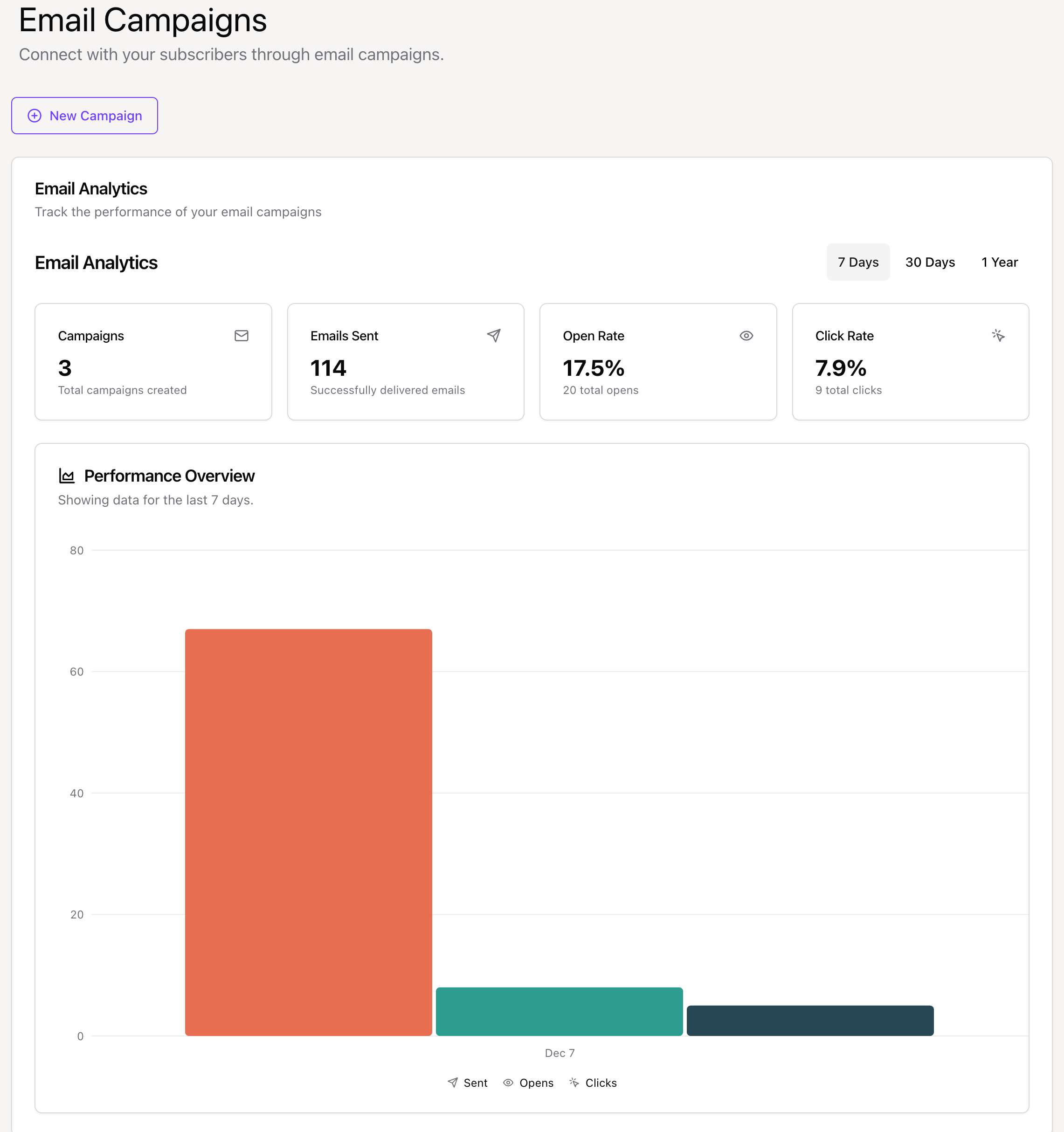
4. Tracking Performance
After sending, you can view detailed analytics for each campaign:
- Open Rate: The percentage of recipients who opened your email.
- Click Rate: The percentage of recipients who clicked a link.
- Unsubscribes: The number of people who opted out.
Deliverability: We use enterprise-grade email infrastructure to ensure your emails land in the Inbox, not the Spam folder.
5. Subscriber Management
Manage your email list effectively to maximize engagement.
Viewing Subscribers
- Go to Site Dashboard → Newsletter → Subscribers
- View all subscribers with:
- Email address and name
- Subscription date
- Status (Active, Unsubscribed)
- Source (Signup form, Import, etc.)
Subscriber Actions
📥 Import Subscribers
Upload a CSV file to bulk import existing subscribers.
📤 Export List
Download your subscriber list anytime—you own your data.
Managing Unsubscribes
- Unsubscribed users are kept in your list (marked inactive)
- They won't receive future emails
- Respect opt-outs—this protects your sender reputation
6. Domain Verification (Custom Sending Domain)
For better deliverability and professional branding, verify your own email domain.
Why Verify Your Domain?
| Benefit | Description |
|---|---|
| Better Deliverability | Emails from verified domains are trusted by inbox providers |
| Professional Look | Send from [email protected] instead of Postion's domain |
| Brand Trust | Subscribers recognize your brand immediately |
Verification Process
- Go to Site Settings → Email → Domain Verification
- Enter your domain (e.g.,
yourdomain.com) - Add the provided DNS records to your domain registrar:
- DKIM record: For email authentication
- SPF record: Authorizes sending servers
- DMARC record: Defines email policy
- Click Verify — we'll check your DNS automatically
- Once verified, select your custom domain as the sender
DNS Propagation: DNS changes can take up to 48 hours to propagate. Most verifications complete within a few hours.
7. Email Quotas & Limits
Email sending is subject to monthly quotas based on your plan.
Quota Tiers
| Plan | Monthly Email Quota |
|---|---|
| Free | 500 emails |
| Launch | 5,000 emails |
| Premium | 25,000 emails |
| Enterprise | Custom |
Checking Your Usage
- Go to Dashboard → Email Quota
- View:
- Emails sent this month
- Remaining quota
- Reset date
Need More Emails?
- Upgrade your plan for higher limits
- Purchase additional email credits
- Contact support for enterprise needs
8. Detailed Send Statistics
Track every email's journey with comprehensive statistics.
Campaign Analytics
| Metric | What It Tells You |
|---|---|
| Sent | Total emails dispatched |
| Delivered | Successfully reached inbox |
| Bounced | Failed to deliver (hard/soft) |
| Opened | Recipient opened the email |
| Clicked | Clicked a link in the email |
| Unsubscribed | Opted out from this email |
Individual Email Tracking
For each send, you can see:
- Exact delivery timestamp
- Open tracking (when available)
- Link click details
- Bounce reasons
Pro Tip: A healthy open rate is 20-35%. If yours is lower, experiment with subject lines and send times.
Best Practices
✅ Do
- • Send consistently (weekly recommended)
- • Personalize subject lines
- • Test on mobile before sending
- • Segment your audience
❌ Don't
- • Buy email lists
- • Send without a clear CTA
- • Ignore unsubscribe requests
- • Use misleading subject lines